
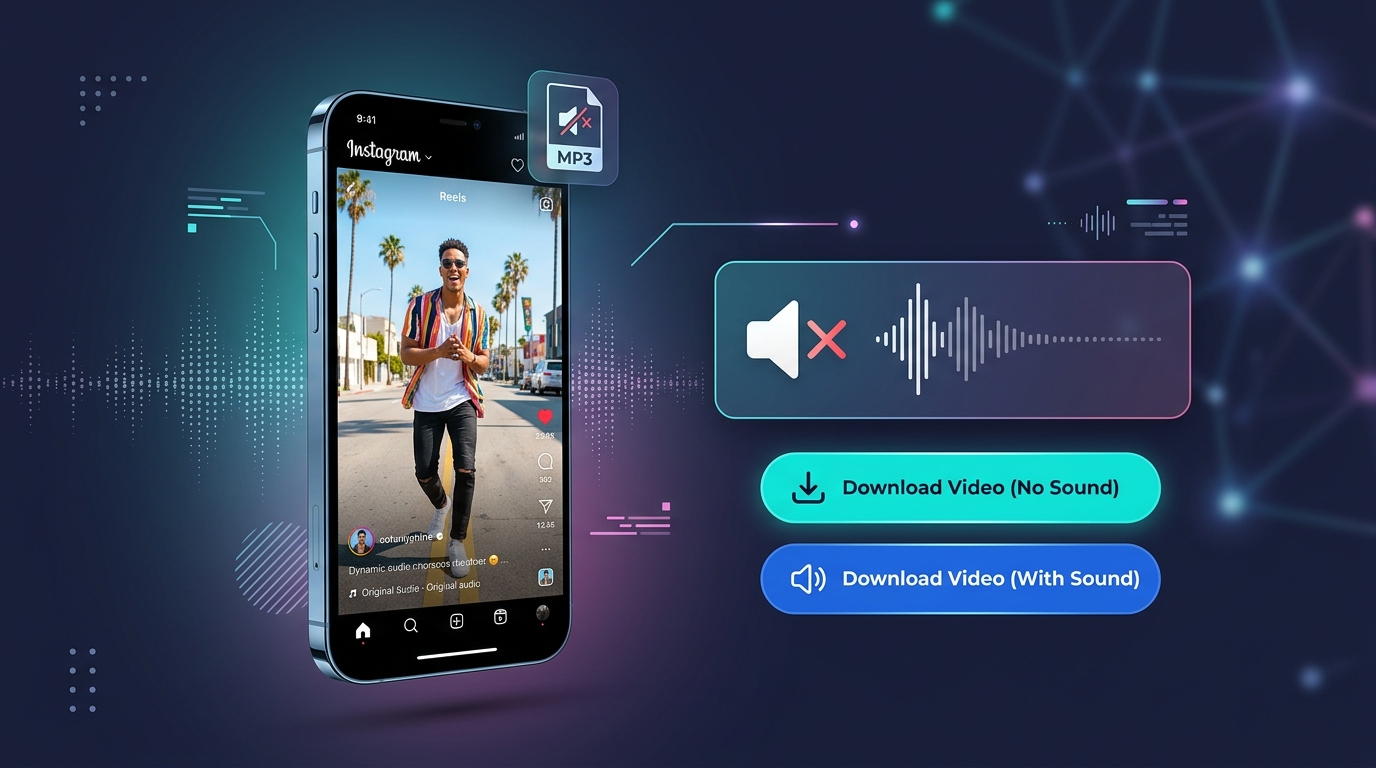
Quick Answer: If you are wondering how do I remove audio from an Instagram Reel, copy the Reel link from the Instagram app and paste it into the Vidnology downloader above. Click Download Video (No Sound) to instantly save the 1080p MP4 file with the audio completely muted and zero watermarks. If you only want to save the sound, click Download MP3 Audio to extract the audio track directly to your iPhone, Android, or PC.
Instagram Reels have become the primary medium for discovering viral video clips, trends, and music. However, creators, video editors, and everyday users frequently need to know how to remove audio from an Instagram Reel, either because they need the clean video without its background sound or because they want to extract the trending audio track without the visuals.
Whether you are trying to eliminate distracting background noise, repurpose content for TikTok and YouTube Shorts without copyright issues, or learn how can I extract audio from an Instagram Reel as an MP3 file, this guide covers every method. Below, you will find step-by-step instructions for muting downloaded Reels with one click using Vidnology, how to remove original audio from an Instagram Reel inside the Instagram app before posting, and how to extract audio from Instagram Reels in iPhone and Android.
Why Remove or Extract Audio from an Instagram Reel?
There are four major reasons why content creators and viewers choose to remove or isolate audio from Instagram Reels:
- Repurposing Content Across Platforms: If you upload an Instagram Reel directly to YouTube Shorts or TikTok with its original copyrighted music, those platforms may flag the video or mute it entirely. Downloading a clean, muted video allows you to add native trending audio on each respective platform.
- Eliminating Unwanted Background Noise: Many videos shot on smartphone cameras capture loud wind, background chatter, or traffic noise. Stripping the original camera audio provides a clean slate for studio voiceovers or crisp sound effects.
- Extracting Viral Audio as MP3: Many popular songs, remixes, and motivational speeches originate on Instagram Reels before anywhere else. Extracting the audio track as an MP3 file lets you save it to your phone for personal offline listening or creative video editing.
- Commercial Account Compliance: Business profiles on Instagram often face licensing restrictions on commercial audio. Muting original audio allows brands to replace it with royalty-free tracks that comply with advertising policies.
Method 1: Download Instagram Reel Without Sound Using Vidnology
If you want to know how to remove audio from an Instagram Reel that is already published, the fastest and cleanest method is using Vidnology. You do not need to install video editing apps, sign up for an account, or learn complex software. Vidnology runs directly in your mobile or desktop browser.
Step-by-Step Guide to Download Muted Video
- Copy the Reel Link: Open the Instagram app, navigate to the Reel you wish to download, tap the Share button (the paper plane icon), and tap Copy Link.
- Paste into Vidnology: Scroll up to the input box at the top of this page, paste the copied link, and click the blue Download button.
- Click Download Video (No Sound): Once the video card loads, you will see three dedicated download options. Click the teal Download Video (No Sound) button. The muted 1080p MP4 file will immediately save to your device gallery or downloads folder.
Try Vidnology Reel Audio Remover Now
Paste any public Instagram Reel URL below to download muted video or extract original MP3 audio directly:
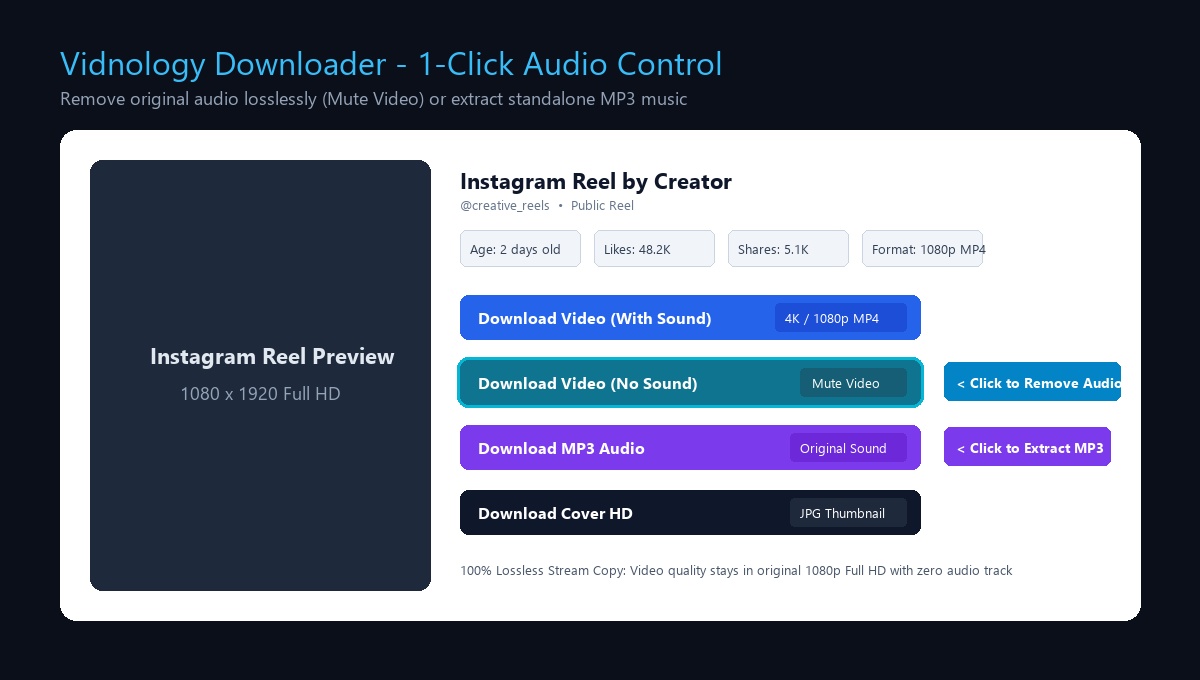 Vidnology result card showing one-click options for muted video and MP3 audio download.
True Lossless Audio Stripping (Zero Video Quality Loss)
Standard video editing apps and generic online converters typically re-encode the entire video when muting audio. This re-compression process reduces crispness, drops frame rates from 60fps to 30fps, and can introduce blurriness.
Vidnology operates on a lossless container-level extraction process. When you select Download Video (No Sound), our system fetches the original high-bitrate video stream from Instagram's public Content Delivery Network (CDN) and demuxes the file, removing the AAC audio track without touching the underlying H.264 video frames. You receive the exact same 1080p Full HD video resolution as originally published, with zero pixelation and zero watermarks.
Method 2: How Can I Extract Audio from an Instagram Reel (iPhone and Android)
Many users ask how can I extract audio from an Instagram Reel when they want to save only the soundtrack, dialogue, or song from a video. Vidnology includes a built-in high-bitrate audio extractor that works seamlessly across all operating systems.
How to Extract Audio from Instagram Reels in iPhone (iOS Safari)
If you are searching for how to extract audio from Instagram Reels in iPhone without using third-party converter apps or complicated Shortcuts, follow these direct steps:
- Open the Instagram app on your iPhone and tap Share > Copy Link on the target Reel.
- Open Safari and visit vid.dealnology.com/blog/how-to-remove-audio-from-instagram-reel.
- Paste the URL into the search field and tap Download.
- Tap the purple Download MP3 Audio button on the result card.
- When Safari displays the download confirmation popup, tap Download.
- Tap the download arrow in Safari's address bar to access the file in your iOS Files app, ready to play in the Apple Music app, use in CapCut, or import into GarageBand.
How to Extract Audio on Android (Google Chrome)
- Copy the Reel URL from the Instagram app.
- Open Google Chrome and paste the link into the Vidnology search box above.
- Tap Download MP3 Audio. The audio track will immediately save to your phone's internal Downloads folder at original high audio fidelity.
Method 3: How to Remove Original Audio from an Instagram Reel Before Posting
If you are preparing to upload your own video and want to know how to remove original audio from an Instagram Reel, you can mute your camera microphone directly inside the Instagram app before publishing. This eliminates unwanted ambient sounds without requiring external editing tools.
- Open Instagram, tap the + button at the bottom, and select Reel.
- Select your recorded video clip from your photo gallery and tap Next to open the editor.
- Tap the Audio (musical note) icon in the top toolbar.
- Tap the Controls option at the top left of the audio panel.
- Locate the Camera audio slider and drag it down to 0%.
- If you wish to add a background song or voiceover, tap Add Audio and select your track.
- Tap Done. Your Reel will now publish with only your selected music, and the original camera microphone sound will be completely muted.
Comparing Methods to Remove Audio from Instagram Reels
The table below outlines how Vidnology compares to the native Instagram app and third-party mobile video editing applications:
| Feature | Vidnology Online | Instagram In-App | Video Editing Apps |
|---|---|---|---|
| Download Muted Video | Yes, 1-Click 1080p MP4 | Only during post draft save | Yes, requires manual export |
| Extract Clean MP3 Sound | Yes, 1-Click MP3 | Not supported | Requires multi-step export |
| Video Quality Preservation | 100% Lossless (No Re-encoding) | Compressed by Instagram | Re-compressed on export |
| Watermarks Added | Zero Watermarks | Adds IG logo on story save | Often adds watermark or logo |
| Installation Required | None (Runs in browser) | Instagram app required | Heavy 1 GB+ app install |
| Device Support | iPhone, Android, Windows, Mac | Mobile only | Varies by platform |
Pro Tips for Content Creators Repurposing Reels
If you regularly repurpose short-form videos across Instagram, TikTok, and YouTube Shorts, keep these essential recommendations in mind:
- Avoid Overlapping Music Tracks: Never download a video with an existing music track and then add another song over it in TikTok or YouTube Shorts. The resulting audio will sound muddy and double-tracked, which instantly drives viewers away. Always use Vidnology to download the muted video first.
- Preserve Master Backups: Social media algorithms and copyright policies change over time. Keeping a local backup of your clean, uncompressed, watermark-free video files ensures you can re-edit and re-monetize your catalog whenever needed.
- Check Licensing for Sponsored Posts: If you are creating sponsored content for brand partners, always confirm that your background audio is fully licensed for commercial usage. Muting original audio allows you to insert approved stock audio from commercial libraries like Epidemic Sound or Artlist.
Frequently Asked Questions (FAQs)
1. How do I remove audio from an Instagram Reel?
Copy the public Reel link from the Instagram app, paste it into the search box on Vidnology, and click Download Video (No Sound). The video will be saved directly to your device in 1080p Full HD with the audio completely removed and no watermarks added.
2. How do I remove original audio from an Instagram Reel before posting?
When editing your video inside the Instagram Reel creator, tap the Audio icon at the top, select Controls, and drag the Camera audio slider to 0%. This mutes your phone camera microphone recording while leaving your added music intact.
3. How can I extract audio from an Instagram Reel on iPhone?
Open the Reel in the Instagram app, tap Share, and select Copy Link. Open Safari, visit Vidnology, paste the link, and click Download MP3 Audio. Confirm the download prompt in Safari to save the audio file directly into your iOS Files app without needing any third-party app.
4. Can I download an Instagram Reel without sound and without watermark?
Yes. Vidnology delivers clean MP4 video files directly from Instagram's public CDN with zero logos, zero watermarks, and zero end cards.
5. Does removing audio reduce video quality?
No. Vidnology removes the audio track from the container stream without re-encoding the video frames. The 1080p Full HD resolution, bitrate, and 60fps frame rate remain 100% identical to the original video.
6. Is Vidnology free and safe to use?
Yes. Vidnology is 100% free with no registration or login required. It operates under a strict zero-storage privacy policy, meaning no video or user data is ever saved or stored on our servers.
Related Video Tools on Vidnology
Explore more free, zero-watermark download tools available on Vidnology:
- Instagram Reels Downloader 4K: Save high-frame-rate Reels in Full HD and 4K.
- Instagram Audio Download Link Music: Extract high-bitrate MP3 soundtracks and background songs.
- Instagram Video Downloader Without Watermark HD: Save any public video or carousel post.
- Facebook Video Free Download Copy Link: Fast Facebook HD and 4K video downloader via link.
Explore All Free Instagram & Facebook 4K Download Tools
Direct browser-based tools on Vidnology (vid.dealnology.com) — 100% free, zero watermark, no app or login required: