

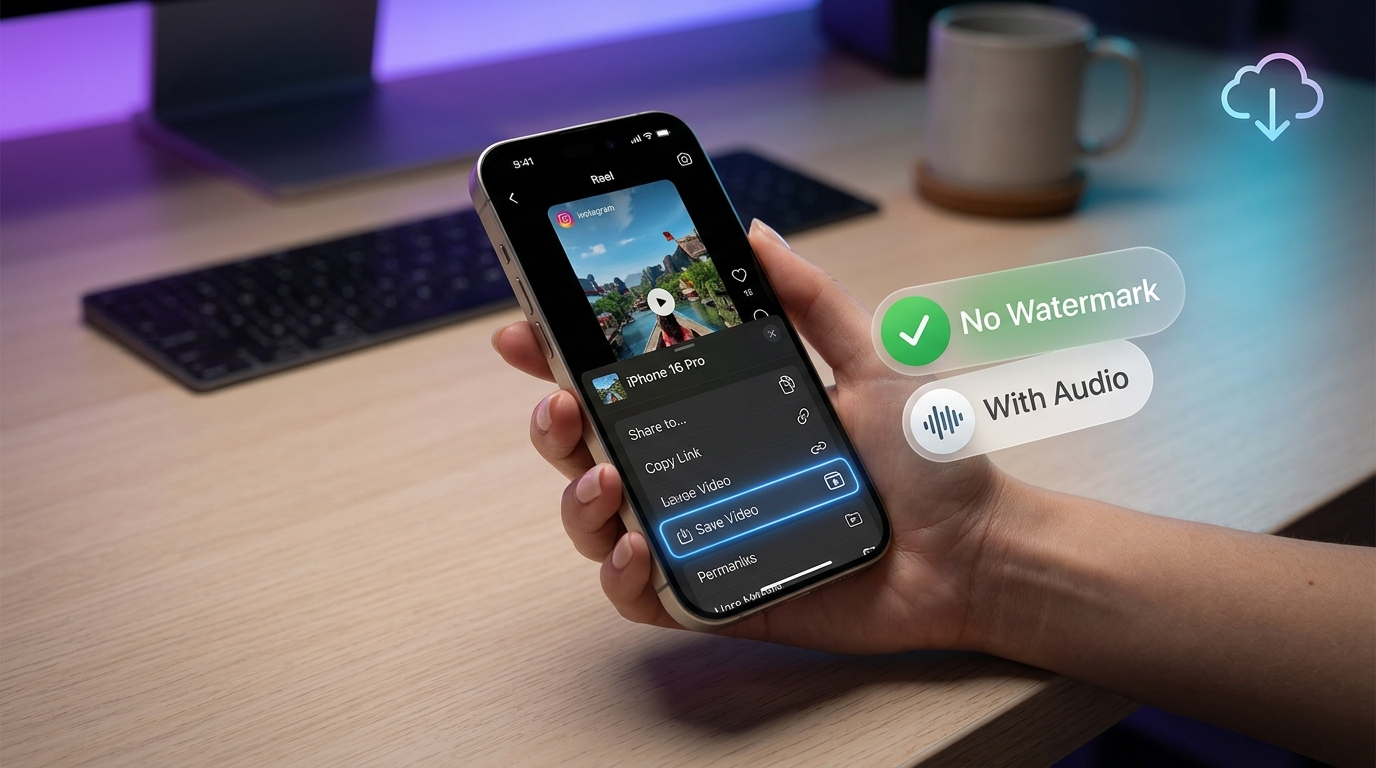
Quick Answer: If you are wondering can you save Instagram Reels to camera roll on iPhone with sound and no watermark, the fastest free method is using Safari with Vidnology. Copy the Reel link inside the Instagram app, paste it into the downloader below, and tap Download Video HD. Once downloaded in Safari, tap the iOS Share icon and select Save Video. The Reel is immediately added to your Apple Photos Camera Roll with full stereo sound and zero watermark branding.
Instagram Reels have transformed into the internet's favorite destination for short-form entertainment, tutorials, fitness routines, and viral music. Every day across the United States and globally, millions of iPhone users search for how to save instagram reels to camera roll iphone so they can keep their favorite videos offline, share them with friends on iMessage or WhatsApp, or use them in creative video projects.
However, Apple iOS users routinely run into two major frustrations when trying to save Reels: either the native Instagram app removes the soundtrack because of commercial music licensing, or it imprints an annoying floating watermark across the video. Furthermore, saving an unpublished draft to your camera roll without posting it requires a specific workflow. This comprehensive guide provides step-by-step instructions for every scenario on iOS 16, iOS 17, and iOS 18.
Why Does Instagram Mute Audio When Saving to iPhone Camera Roll?
If you have ever used Instagram's built-in "Save to camera roll" feature and wondered why the saved file plays in complete silence, you are not alone. This is not an iPhone glitch; it is an intentional restriction built into the Instagram application.
Meta holds commercial streaming licensing agreements with major music labels (including Universal Music Group, Sony Music, and Warner Music Group). These contracts permit users to stream copyrighted songs within the Instagram ecosystem. However, these licenses do not grant users offline synchronization rights. Whenever you attempt to save an Instagram Reel that features licensed music via the app's native menu, Instagram's automated system strips the audio channel and displays a notification: "Video saved without audio."
To preserve both the high-definition 1080p video stream and the full stereo audio track, you need a web-based extraction tool that captures the uncompressed media file directly from the source server.
Method 1: Save Any Instagram Reel to iPhone Camera Roll with Audio & No Watermark (Recommended)
The most dependable and 100% free way to save someone else's Reel or your own published Reel directly to your Photos app is by using Safari with Vidnology. You do not need to install sketchy third-party App Store apps, pay for weekly subscriptions, or enter your Instagram login credentials.
Step 1: Copy the Instagram Reel Link
Open the Instagram app on your iPhone. Locate the Reel you want to download. Tap the Share button (the paper airplane icon on the right side of the screen). In the pop-up share menu, tap Copy Link. A small confirmation checkmark will indicate that the URL has been saved to your iOS clipboard.
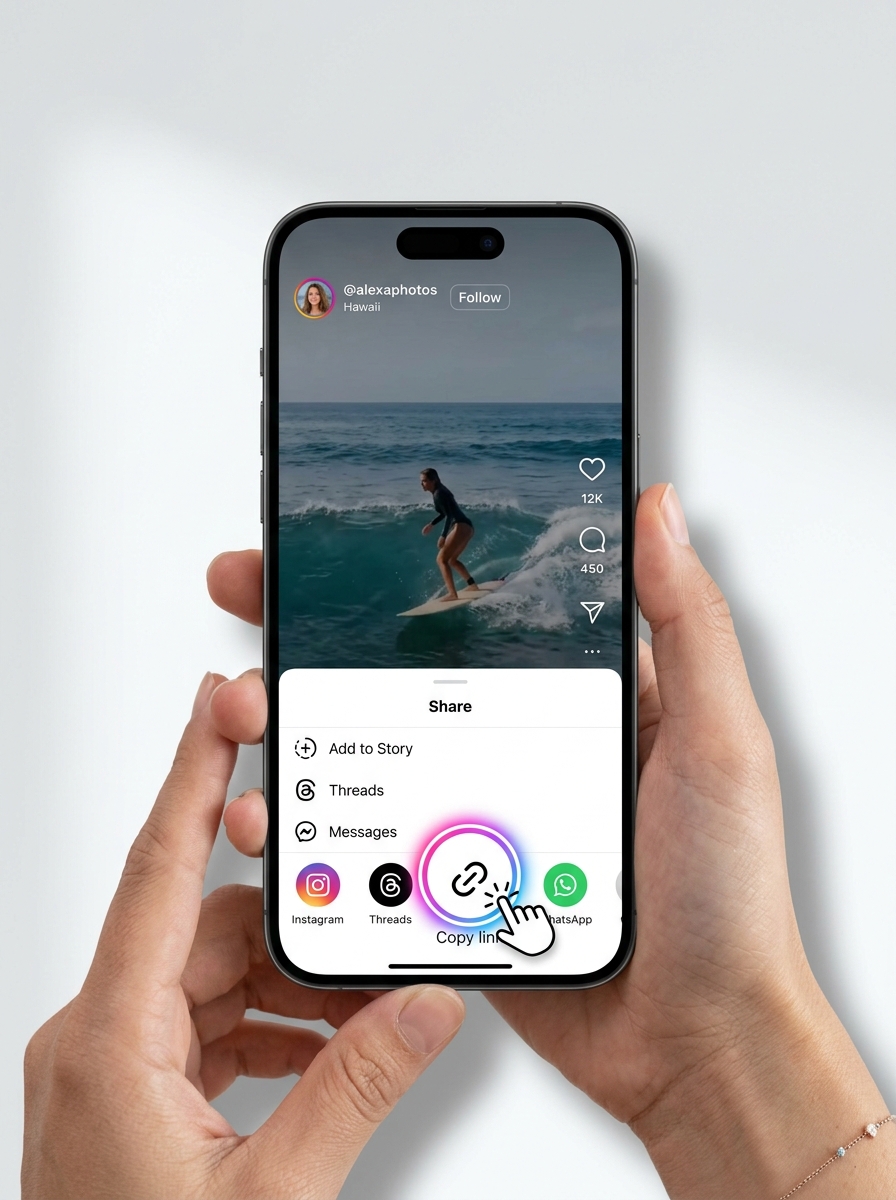
Tap the Share icon and choose Copy Link inside the Instagram app.
Step 2: Paste the Link into Vidnology in Safari
Open Apple Safari on your iPhone and visit Vidnology (or use the interactive tool box provided below). Tap the input field, select Paste, and tap the blue Download button. Vidnology will parse the media stream and generate direct high-speed download links.
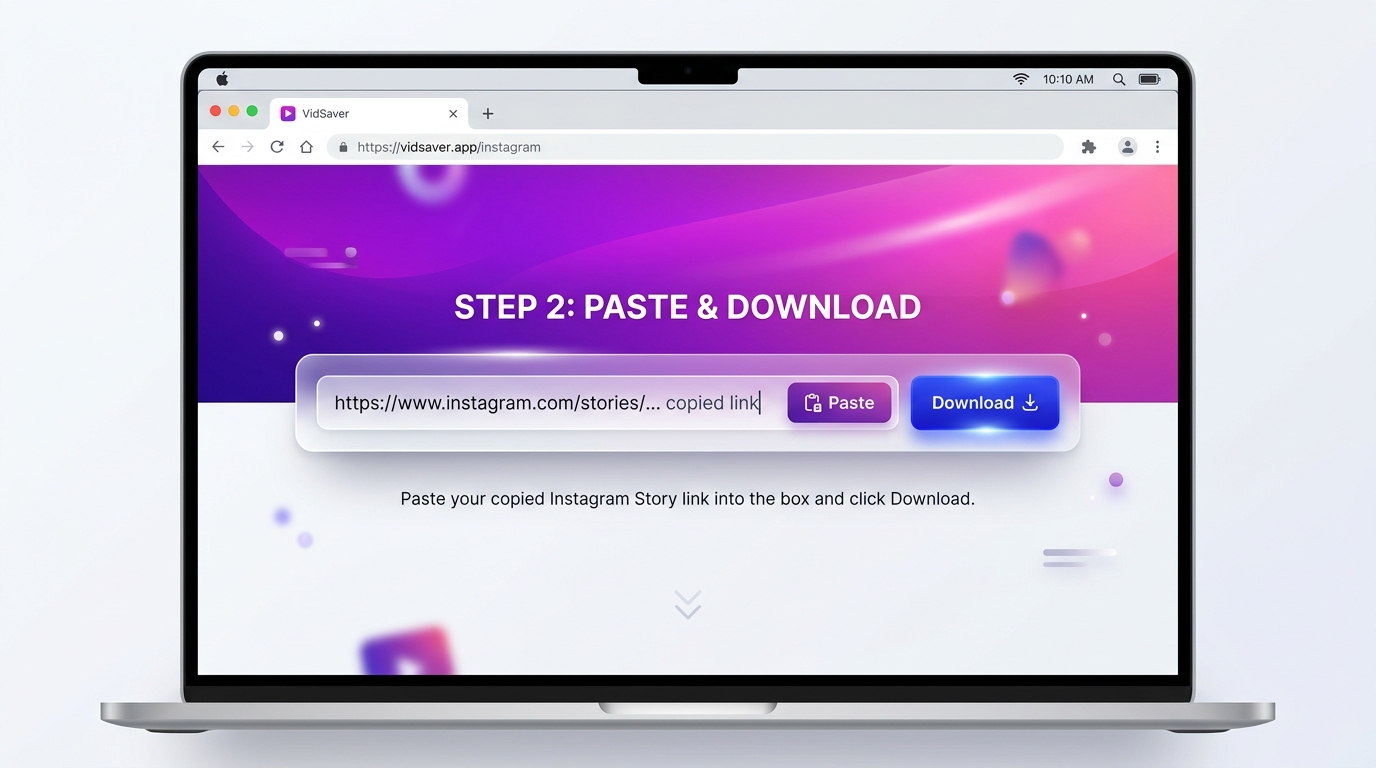
Paste the copied Instagram Reel URL into the input field.
Save Instagram Reel to iPhone Now
Paste any public Instagram Reel URL to download in 1080p Full HD with original sound:
Step 3: Download the 1080p MP4 File
Tap the green Download Video HD button. A Safari prompt will appear on your iPhone asking: "Do you want to download [filename].mp4?" Tap Download. You will notice the small blue download progress arrow in the Safari address bar.
Step 4: Move the Video to Your Photos App (Camera Roll)
By default, Safari downloads files to your iCloud Drive or iPhone Downloads folder. To move it into your Photos Camera Roll:
- Tap the Download arrow in the Safari URL bar (or open the iOS Files app and tap Downloads).
- Tap on the downloaded Reel video to open full-screen playback.
- Tap the iOS Share button (the square with the upward arrow in the bottom-left corner).
- Scroll down the iOS Share Sheet and tap Save Video.
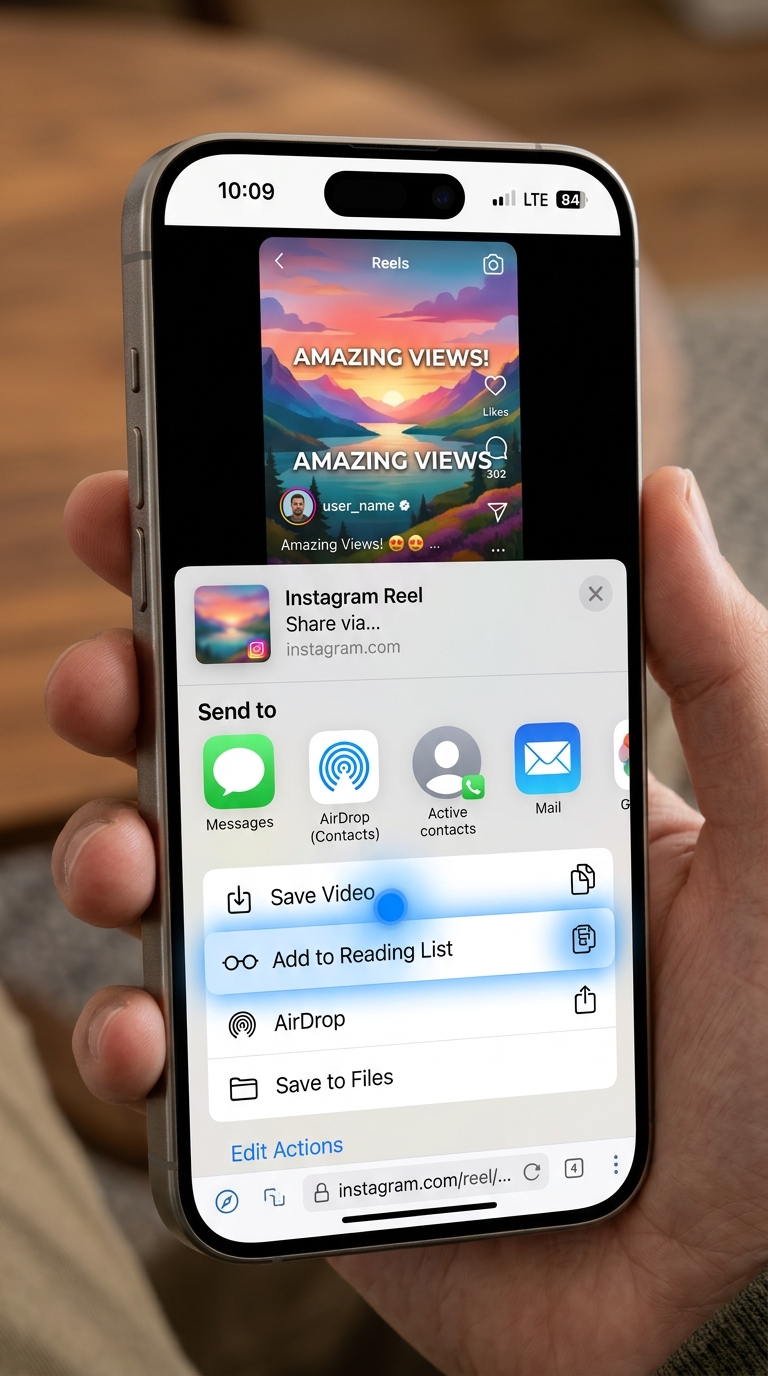
Tap the Share button in Safari Downloads and select "Save Video" to add it to Apple Photos.
Open the Photos app on your iPhone. Your Reel is now resting in your Recents and Videos album, ready to play with crisp original audio and crystal-clear 1080p resolution.
Method 2: How to Save Instagram Reels Draft to Camera Roll iPhone Without Posting
A common hurdle content creators face is wanting to save an unfinished Reel draft to their camera roll before making it public. Whether you want to back up your edits, share a preview with a client or friend, or edit further in CapCut or Premiere Rush, here is how to handle Reel drafts on iPhone:
Drafts with Camera Audio Only (No Music Added Yet)
If your draft only contains camera audio or voice recordings recorded within the app:
- Open Instagram, tap your profile picture, and navigate to the Reels tab.
- Tap the Drafts folder and select the draft you want to save.
- Tap Edit in the top-right corner to open the timeline editor.
- Look at the top icon toolbar and tap the downward-pointing Download arrow. The video will render and save directly to your iPhone Camera Roll with your recorded voice intact.
Drafts Containing Copyrighted Music (Workaround)
If you added a song from Instagram's music library to your draft, tapping the download button will mute the music. To save the draft with music without publishing it to your main feed:
- In the draft editing screen, tap Next to reach the Share screen.
- Under Audience, switch the setting from "Everyone" to Close Friends (ensure your Close Friends list only contains an alternate test account or yourself).
- Publish the Reel to Close Friends.
- Once posted, tap the Share button, tap Copy Link, and paste it into Vidnology in Safari.
- Download the complete 1080p MP4 with full music to your Camera Roll, then delete the Reel from your profile.
Method 3: How to Save Someone Else's Reel to Camera Roll iPhone
When browsing your Instagram feed or explore page, you may see an inspiring recipe, workout, or comedy skit posted by another creator. If the creator has disabled Instagram's built-in download permission, the in-app save button will not even appear.
With Vidnology, you can save any public Reel regardless of whether the creator toggled in-app downloads on or off. Simply copy the link via the Share sheet and paste it into Vidnology in Safari. The server retrieves the original public MP4 stream directly, allowing you to save the clean video without account restrictions.
Privacy Note: Vidnology operates entirely anonymously. The Reel creator is never notified that you viewed or saved their video, and no records of your downloads are stored on our servers.
Comparison: Different Ways to Save Instagram Reels on iPhone
The table below evaluates the four most common methods iPhone users employ to save Instagram Reels to their Photos library:
| Method | Video Quality | Audio Kept? | Watermark | Cost & Safety |
|---|---|---|---|---|
| Vidnology Safari Tool | Original 1080p 60fps HD | Yes (Full Stereo) | None (100% Clean) | 100% Free / No App Required |
| Instagram In-App Save | Compressed 720p/1080p | Muted on Licensed Music | Instagram Logo & Handle | Free / Built-in |
| iOS Screen Recording | Variable Screen Quality | Yes (System Sound) | UI Icons & Comments Visible | Requires Manual Cropping |
| App Store Downloader Apps | 1080p (Often Re-encoded) | Usually Yes | App Watermark (Unless Paid) | $4.99/week Subscriptions / Ads |
Troubleshooting: iPhone Camera Roll Save Issues
If you encounter any difficulties saving your downloaded Reel to Photos on iPhone, consult these quick solutions:
- "Save Video" Option Missing from Share Sheet: If tapping the Share icon in Safari does not show "Save Video", check your iOS permissions. Go to Settings > Safari > Downloads and ensure it is set to "On My iPhone". Also verify that Safari has access to add photos in Settings > Privacy & Security > Photos.
- Video Saves in Files App Instead of Photos: When downloading in Safari, iOS places the file in the Files app by default. You must tap the Share icon on the video inside Files or Safari Downloads and tap Save Video to move it into Apple Photos.
- File Fails to Play Audio in QuickTime or iMovie: Make sure you download using Vidnology's direct MP4 stream rather than an audio-only stream. Our tool preserves AAC stereo audio encoding, which is natively supported across all Apple operating systems.
- Download Stops Incomplete: Ensure your iPhone is connected to a stable Wi-Fi or 5G connection and that low power mode is disabled if downloading lengthy multi-gigabyte video batches.
Frequently Asked Questions (FAQs)
1. Can you save Instagram Reels to camera roll on iPhone for free?
Yes. Vidnology is 100% free with no registration, subscription, or software installation needed. You can save unlimited Instagram Reels in 1080p Full HD directly to your iPhone Camera Roll through Apple Safari.
2. Why do Instagram Reels save without sound to my iPhone camera roll?
Instagram automatically mutes audio when using the in-app download feature because of digital music licensing agreements with record labels. Using Vidnology bypasses this limitation by delivering the original master MP4 stream with full stereo sound intact.
3. How do you save an Instagram Reel to camera roll without watermark?
When you save a Reel within the Instagram app, it imprints the creator handle and Instagram logo. Vidnology extracts the clean source video directly from Meta's Content Delivery Network (CDN) with zero watermarks or visual logos.
4. How to save an Instagram Reel draft to camera roll on iPhone without posting?
If your draft has original camera audio, open the draft and tap the downward download arrow in the top toolbar. If it contains commercial music, set the audience to Close Friends, publish the draft temporarily, copy the link into Vidnology to download with audio, and delete the post from your feed.
5. Where do downloaded Instagram Reels go on iPhone?
When downloaded in Safari, files first appear in your Safari Downloads manager (accessible via the blue arrow icon in the address bar) or in the iOS Files app under Downloads. Tapping the Share sheet and selecting Save Video immediately transfers the MP4 into the Apple Photos Camera Roll.
6. Is it safe to use third-party iPhone apps to download Reels?
Many App Store downloader apps require you to sign into your Instagram account, risking account suspension or credential theft. Additionally, most charge recurring weekly subscription fees. Browser tools like Vidnology require no login and protect your device security.
7. Can I save Reels from a private Instagram account to my camera roll?
No. To respect user privacy and intellectual property standards, Vidnology only processes publicly accessible Instagram Reels and posts. Reels from private accounts cannot be extracted via link.
8. Does saving an Instagram Reel to camera roll notify the creator?
No. Instagram does not send notifications when someone saves a public Reel to their device, whether through the in-app menu or an external web tool like Vidnology.
Related Instagram & Video Tools
Explore more free, high-speed tools designed for iPhone and mobile creators:
- Save Instagram Reels to Camera Roll iPhone Tool: Instant 1-click web downloader for iOS Safari.
- How to Remove Audio from an Instagram Reel: Mute videos or extract MP3 audio.
- Instagram Reels Downloader 4K: Download high-frame-rate Reels in Full HD & 4K.
- Pinterest Video Download 1080p Without Watermark: Download Pinterest videos & ideas on iPhone.
- Facebook Video Free Download Copy Link: Save Facebook Watch clips & Reels in 1080p.